
Get help with enrolling your card
Answers to the most common questions people run into when enrolling a fingerprint on their IDEX card using an Android phone.
Hold the card flat against the back of your phone, between the middle and the top. On most Android phones the NFC antenna sits under the back cover – often near the centre, on some
models closer to the camera area at the top – and small position changes make a big difference.
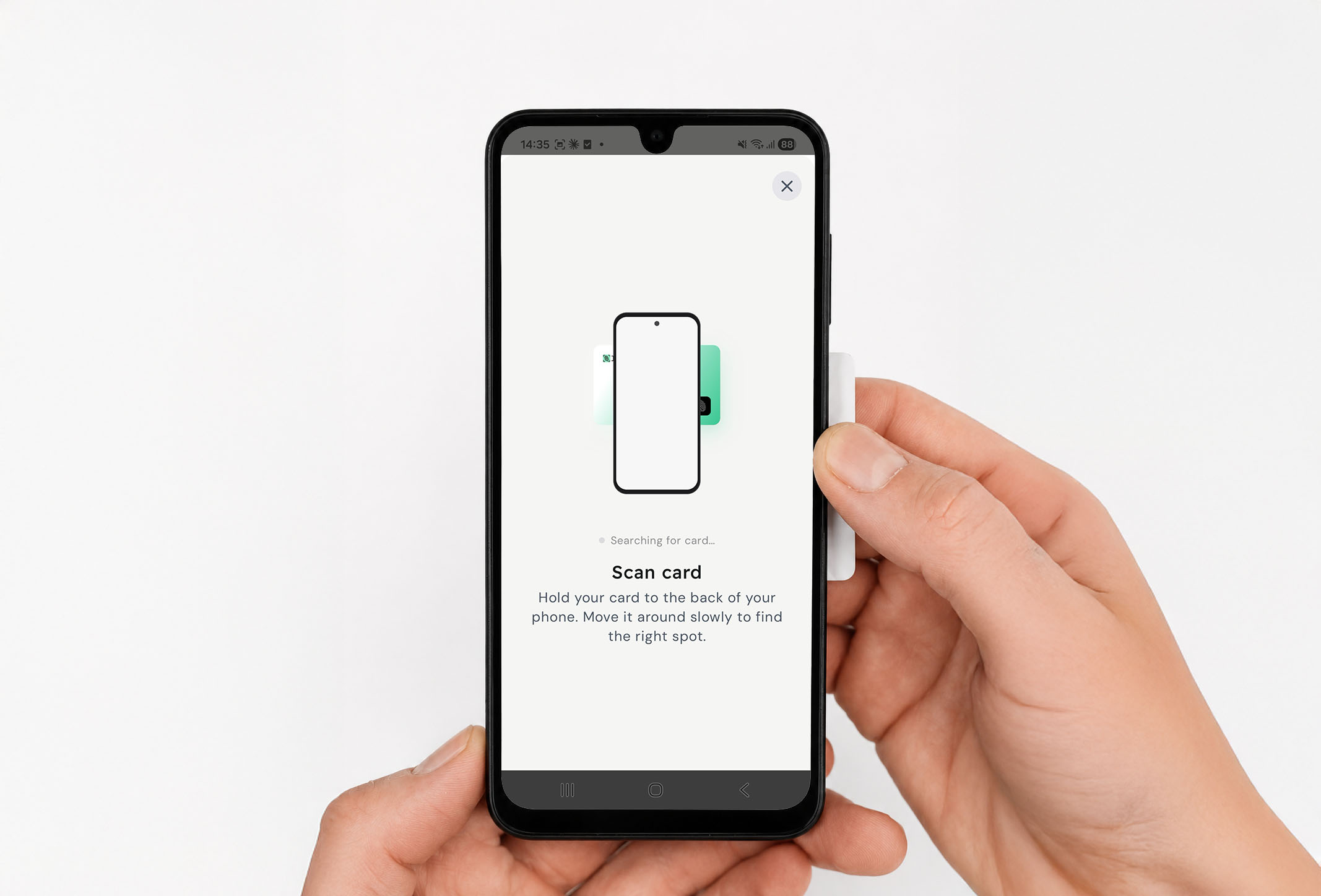
Try this:
- Hold the card completely still against the back of the phone. Movement resets the connection.
- Slide the card slowly up and down by a few centimeters to find the sweet spot – the antenna position varies per Android model.
- Make sure NFC is switched on (Settings → Connections/Connected devices → NFC), your phone is unlocked, the screen is on and the app is open in the foreground.
- Remove your phone case, especially thick, metal or magnetic cases – they can block or weaken the NFC field.
The sensor is the small black square in the bottom-right corner of the card. It needs a firm, flat touch – and it needs the card to stay perfectly still against the phone while you touch it.
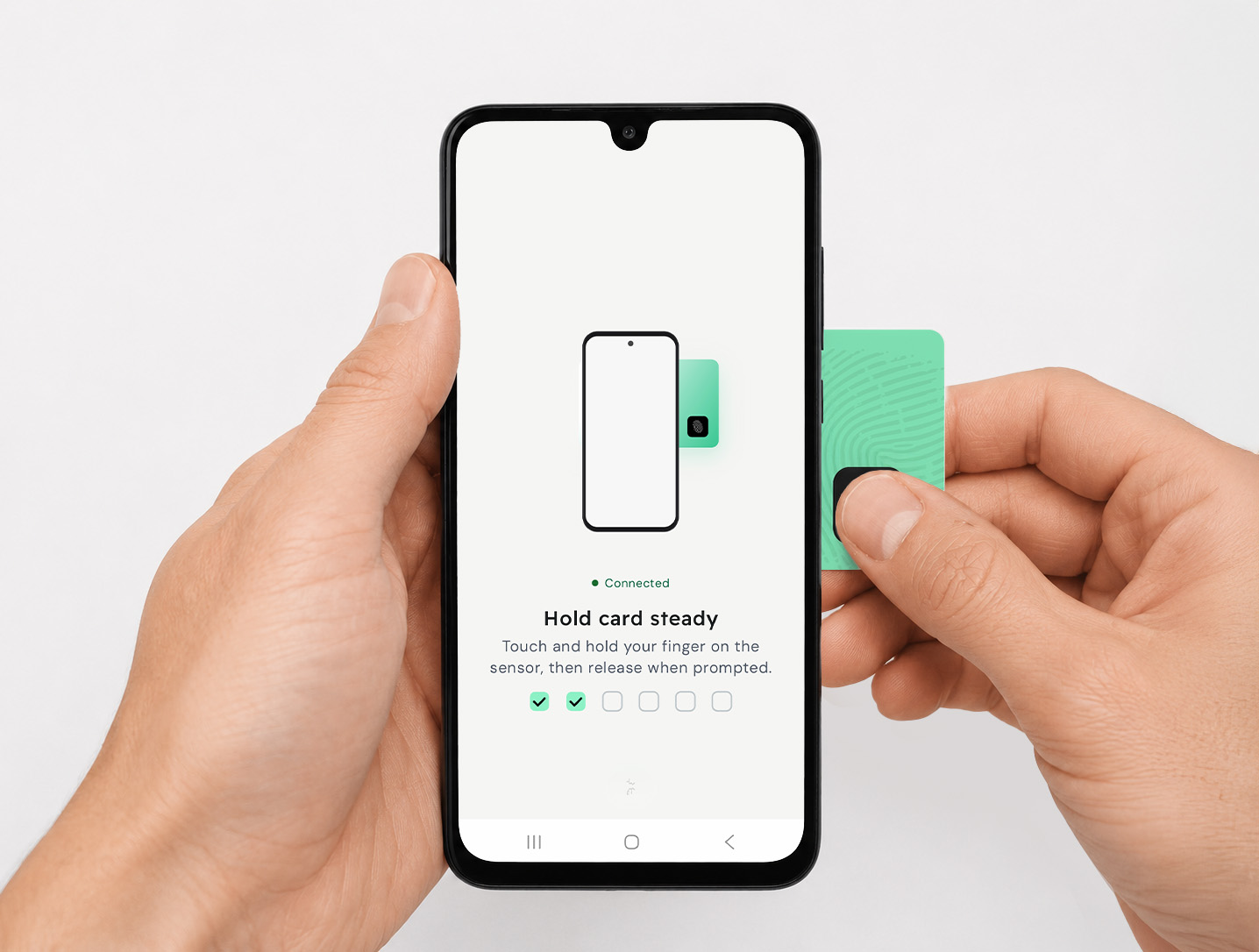
How to make good captures:
- Position the card against the back of your phone so the sensor sticks out past the edge and stays visible. On some phone models the card needs to stick out past the top edge instead of the side, depending on where the NFC antenna sits. The rest of the card must stay flat against the phone to keep the connection.
- Rest the pad of your finger flat on the sensor, covering the whole square. Don’t use the tip, the side or your fingernail.
- Press firmly enough that your fingerprint makes full contact – but support the card from behind with your other fingers, so pressing doesn’t tilt it away from the phone.
- Between each placement, lift your finger clean off the sensor, then place it again. Don’t slide or drag.
- Keep the card completely still against the back of the phone the entire time. Even a small shift can affect a capture and force a retry.
- Slightly vary where your finger lands each time (up, down, a bit left/right on the sensor). Enrolment builds a wider map of your fingerprint that way, which makes future scans more
reliable.
If captures keep failing:
- Very dry, wet or greasy fingers all read poorly. Wipe your finger with a dry cloth, or breathe on it if your skin is very dry.
- Clean the sensor gently with a dry, soft cloth – smudges and grime reduce contact quality.
- Try a different finger. If a finger has a fresh cut, a callous or a healing scar, it may not enrol well until it heals.
Your PIN is stored only on the card itself – there is no reset flow, and we can’t recover it for you. This is what protects the card from anyone else changing its settings or fingerprints.
Before you try again
Cards allow a limited number of PIN attempts before locking themselves permanently for security. Once that happens, the card can’t be recovered and you’d need a replacement from your card issuer. So only enter PINs you’re reasonably confident about – guessing uses attempts.
If the card is now permanently blocked
Contact your card issuer to request a replacement.